Shentel Speed Test: How to Read Download, Upload & Ping Results
Shentel Guides · 2026-08-12 · 9 min read
Run a more accurate Shentel speed test and learn what download speed, upload speed, and ping mean for streaming, gaming, remote work, and rural homes.
If you searched for a Shentel speed test because your connection feels slow, the number on the screen is only the start of the diagnosis. A useful test separates the speed reaching your router from the performance of Wi-Fi inside your home, then compares several results instead of treating one run as a verdict.
Shenandoah Valley Speed Test is an independent community project and is not owned by or affiliated with Shentel. You can use it to test your connection and contribute an approximate community result that helps neighbors compare real-world service.
What a Shentel Speed Test Measures
Download Speed
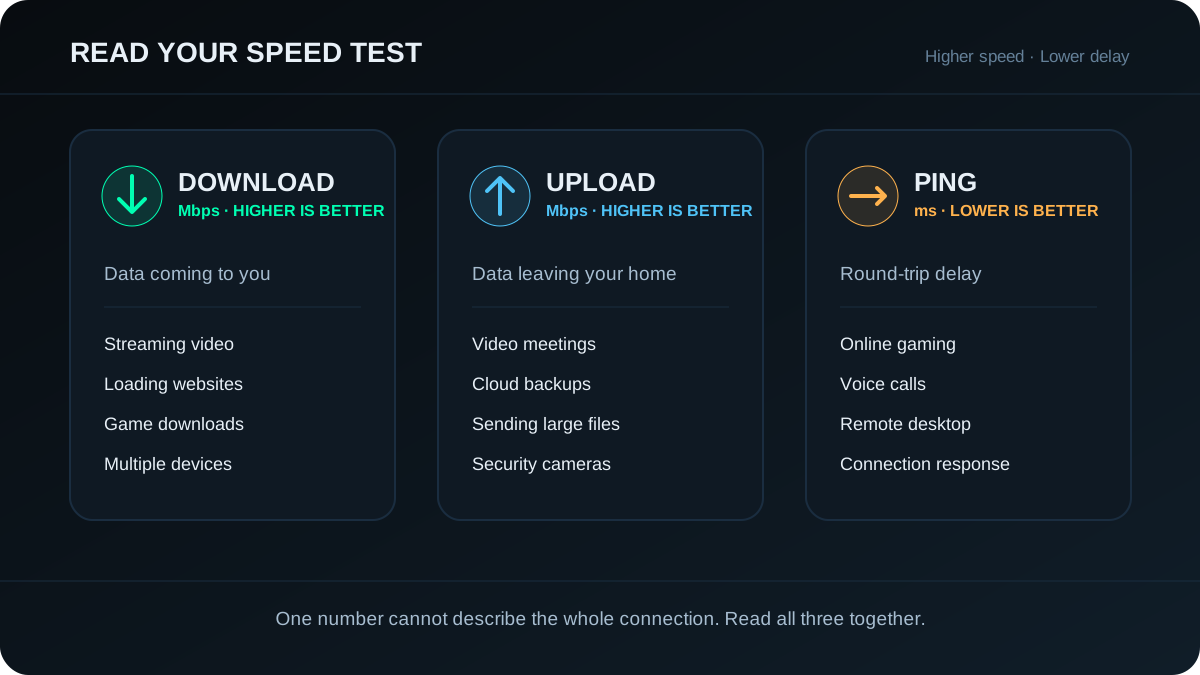
Download speed is how quickly data travels from the internet to your device, measured in megabits per second (Mbps). It affects loading websites, streaming video, downloading games, and using several connected devices at once. This is usually the largest number in a residential internet plan.
Upload Speed
Upload speed is how quickly your device sends data out. It matters for video meetings, sending large files, cloud backups, livestreaming, security cameras, and posting video. A connection can feel fine while watching video but struggle during a Zoom call if its upload capacity is low or already busy.
Ping or Latency
Ping measures delay in milliseconds (ms). Lower is better. High or unstable latency can cause game lag, delayed voice calls, and sluggish remote-desktop sessions even when the download number looks fast. For gaming, stability often matters more than adding another hundred Mbps of download speed.
How to Run an Accurate Shentel Speed Test
- Use a laptop or desktop with a gigabit-capable Ethernet port for the baseline test whenever possible.
- Connect directly to the router or gateway with a known-good Ethernet cable.
- Pause streaming, game downloads, cloud backups, security-camera uploads, and large file transfers.
- Disconnect from a work VPN before testing unless the VPN itself is what you are diagnosing.
- Close extra browser tabs and restart the browser if the device has been running for a long time.
- Run at least three tests and use the middle result rather than choosing only the fastest run.
- Repeat once during the day and once during the evening if the slowdown happens mainly at peak hours.
Shentel also provides a speed-test option through supported account or router tools. A router-level test can be helpful because it reduces the effect of an older phone, weak Wi-Fi signal, or slow laptop. For an independent comparison, run this community test under the same conditions and record both results.
What Counts as a Good Result?
There is no single good speed for every household. The right result depends on the number of people and devices using the connection at the same time. Shentel notes that online games themselves may use only a few Mbps, while downloads, livestreaming, and multiple users raise the requirement. The FCC currently uses 100 Mbps download and 20 Mbps upload as its benchmark for advanced fixed broadband, but that policy benchmark is not a promise that every device on Wi-Fi will measure exactly 100/20.
- Email and ordinary browsing: a stable connection matters more than a huge top speed.
- HD or 4K streaming: allow room for every simultaneous stream plus other household traffic.
- Remote work and video calls: pay close attention to upload speed, ping, and packet stability.
- Gaming: low, consistent ping usually matters more during play; high download speed mainly helps with large updates.
- Busy households: compare the combined demand from televisions, phones, computers, cameras, consoles, and smart devices.
Why the Test May Be Slower Than Your Plan
Wi-Fi Is the Bottleneck
Distance, walls, interference, crowded channels, and older Wi-Fi standards can reduce speed before the connection reaches your device. If Ethernet is fast but Wi-Fi is slow, changing internet plans may not fix the real problem. Start with router placement, device capability, and mesh or access-point coverage.
Your Device or Cable Tops Out
Older Ethernet ports can be limited to 100 Mbps, and damaged or outdated cables can negotiate at a slower rate. An older phone may also be unable to use the full capacity of a modern plan. Check the connection rate before concluding that the provider is delivering the wrong speed.
Other Devices Are Using the Connection
A console update, television stream, photo backup, or security camera can consume bandwidth in the background. Heavy uploads can also increase latency for everyone else in the home. Test once with normal household traffic, then once with that traffic paused so you can see the difference.
The Slowdown Changes by Time of Day
A repeatable evening-only slowdown points to a different problem than a connection that is slow all day. Keep results with the date, time, connection type, and device. A small record is far more useful when troubleshooting than one screenshot without context.
A Simple Troubleshooting Decision Tree
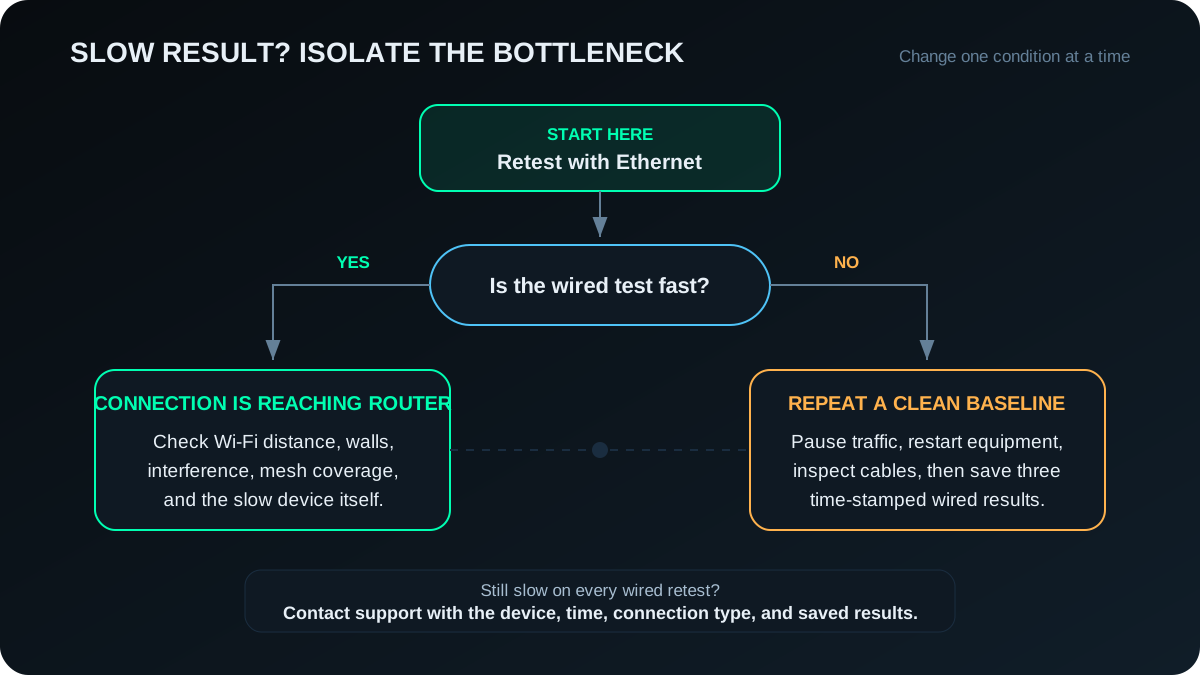
- Wired is fast, Wi-Fi is slow: investigate router location, interference, mesh coverage, and device limitations.
- Wired and Wi-Fi are both slow: reboot the modem or gateway and router, retest with one device, and inspect cables.
- Only one device is slow: update, restart, or test a different device before blaming the connection.
- Every device is slow at the same times: save repeated wired results and contact Shentel support with the evidence.
- Speed is acceptable but calls or games lag: focus on ping spikes, background uploads, Wi-Fi interference, and connection stability.
Compare Your Result With Nearby Communities
A national average cannot tell you what service is like on your road. Internet availability and performance can change between nearby Shenandoah Valley communities, especially outside town limits. Submit your result with an approximate town and provider, then compare it with other community results instead of relying only on an advertised maximum.
- Broadway, VA internet speed results
- Harrisonburg, VA internet speed results
- Woodstock, VA internet speed results
- Luray, VA internet speed results
- Browse every community page
Frequently Asked Questions
Should I test over Wi-Fi or Ethernet?
Use both. Ethernet gives you the cleaner baseline for the connection reaching the router. Wi-Fi shows what your phone, television, or computer actually experiences in its normal location.
How many speed tests should I run?
Run at least three under the same conditions, then repeat at the time you normally notice trouble. One test can be affected by a temporary download, browser load, server path, or Wi-Fi fluctuation.
Why is my phone slower than my wired computer?
The phone may be farther from the router, connected to a more crowded band, or limited by its Wi-Fi hardware. That difference does not automatically mean the internet service itself is slow.